Showing posts with label Photos. Show all posts

Thursday, February 28, 2013

Think Back Thursday ~ Picasa Week 4

The purpose of Think Back Thursday is to link up a photo post about something from the past. You can reach back all the way to your childhood and bravely post pictures of you in your wild clothes and hair styles or post something from last year and tell us about it. I'm not picky. Hey, even yesterday was the past... LOL I hope you will join us.

Original Photo

Boost
 You don't need much boost for flowers so red and colorful already. I used a little more than I normally would so you could see the differences.


Soften
 No explanation needed... it just softens the photo.


Vignette
 Love this feature.
You get to choose the color of the Vignette, the size of the area that gets tinted, the strength of the tinting, and fade takes it from full vignette back to the original.

Pixelate
 Makes your picture look like it is made up of little pixels.
You see that you get to pick the size of the pixels. Blend Mode doesn't work well, at least for me. It sometimes makes the picture go black. I didn't touch the Blend. Fade makes the pixels less noticeable and since I wanted you to notice the feature I didn't use the Fade button either.

Focal Zoom
Focus on the center and blurry as you go out.
Zoominess is... um... zoominess. 

Focal size is the size of the circle in the center that is in focus. See screenshot below. When sliding the Focal Size the circle grows or shrinks and so does the area of focus in the picture.

Edge hardness
 If you slide the edge hardness to the right you eventually get this effect...
Do you see the edge of the zoomy circle???
Not really a good look but I did it to demonstrate what the edge hardness does. When it is all the way to the left there is a smooth blend from the zoom part to the part in focus in the center.

Here is the final zoom with it all blended smoothly.


Pencil Sketch
  This one is sooo cool

This setting goes with the first Pencil Sketch sample
Completely black, white and gray.


 In this one I moved the radius, strength and fade so you have some color.
Also a cool effect.


Neon
 This is self explanatory.
 You get to choose the color of the neon, and you have a fade button as you see.

 This one I used the fade a little to show some of the original color of the photo.


 This one I used no fade and reddish orange color


 This one also used no fade and dark blue. Really, really COOL.
 

Comic Book
 Strange and I have no idea why you would want to show the dots like you get in a magazine or newspaper... It is just weird. Nevertheless, there it is. I exaggerated the features so that you can really see the dots.


Border
 I love this one.
Change colors, thickness; and corner radius. Corner radius can change a square photo to a circle, a rectangle photo becomes an oval.

If you like the affect of the square or rectangle background with the photo as a circle/oval you can leave it like I did below. If you want only your circle/oval photo to show up with a boarder and not the second square/rectangle behind it, you have to set the outer color to match the background of your blog; or wherever you are putting your photo.

I did not know that the corner radius changed it from square corners to rounded or completely round until I did this tutorial. So even I learned something.

I did not use Caption Height but if you use it you can leave a space at the bottom where you can write something about the picture using the text from tab 1.


Here is just the corner of the photo with less corner radius used. Makes it look like a rounded corner like I do when I crop photos for my scrapbooking.

Drop Shadow
 Choose color. Angle changes where the shadow goes. Size is thickness of the shadow. Fade, of course, fades the feature out. Looks kinda cool with a purple shadow.

Museum Matte 
 I use this one ALL.the.time.
 Again choose colors, complementary or contrasting to your photo. You have the complete color pallet to work with. And choose the thickness of each part of the matte.

Polaroid
 Self explanatory. Makes your photo look like the old Polaroids.
Kinda Cool.


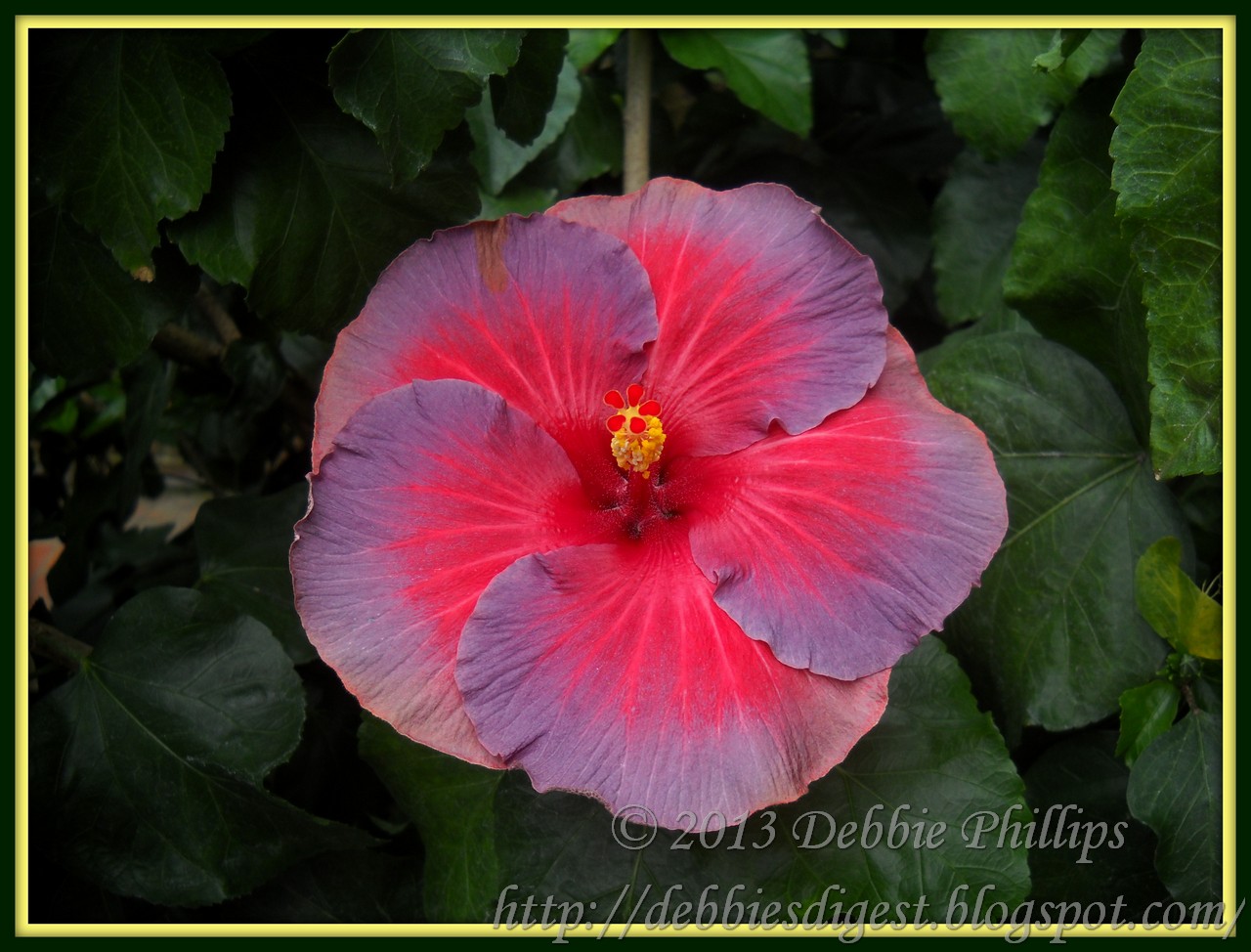
Final Photo - cropped and using Vignette and Museum Matte
I can't remember if I used anything else... and I didn't write down what I used.
Oh, well!
It looks pretty..!!!
We are done the tabs now. Next week we will cover some of the other features. I have some work to do this week on it too, because I don't have the pictures ready yet... and then it takes time to write the post.
http://zaazu.com

In February
(and first week of March)
2/7, 2/14, 2/21, 2/28, 3/7 a series on Playing with Photos
ONE MORE WEEK

http://zaazu.com

What program do you use to fiddle with your photos?
Let us know and show some of the things the program does.

If you don't want to join in on this one... mine will be a series for all of February...
you can choose your own topics and post what you would like.

I have been wanting to do this on my blog and decided to do it for Think Back Thursday since I use a lot of photos for this meme. It will take some planning ahead to get this one ready so I am giving you all of Jan to work on it. 

I have been working on this and it is going to be GOOD! I can't wait to share with you.

I look forward to seeing what you show us... whether you do Playing with Photos or your own thing.

Gotta figure out what is NEXT for March???
Suggestion??? Leave me a comment.

Here are the Rules for participating:
  • It can be about you, about your kids, about your parents, whomever. You can include video, I will not exclude video alone posts, but I prefer them along with photos, as this is a photo meme. I am doing a weekly theme now. That should help narrow it down from the myriad of photos we all have. For ideas check out the other posts in my label Think Back Thursday. 
  • Link up below. Please use a permalink that sends readers directly to the correct post. If you are not sure what that is click the word permalink for an explanation. 
  • Mention my blog and offer a link back. This is a requirement to take part and a kind gesture to me your hostess as well as your readers--they will know where to join in the fun, too. You can put the Think Back Thursday button on your site and in your post. You will find it on my right sidebar. Please use it to link to my site, to spread the word about my meme. Using the button will help others know how to find me and how to join. Tell others to click on the button in your post to find us here.
  • Leave me a comment. First so that you can let me know what you think of my pictures and secondly so that I will know a new post has been linked up and I can come visit your blog and comment on your photos. 
Join me! 


all content on my blog is ©

Thursday, February 21, 2013

Think Back Thursday ~ Editing Photos with Picasa, pt. 3

The purpose of Think Back Thursday is to link up a photo post about something from the past. You can reach back all the way to your childhood and bravely post pictures of you in your wild clothes and hair styles or post something from last year and tell us about it. I'm not picky. Hey, even yesterday was the past... LOL I hope you will join us.

It is time for tab 4 of the features of Picasa. I was going to do tab 4 and 5 but the post would have been tooooo long. It is long enough already. So, I will be adding another week.

Now we are getting to the really fun features.
The features on tab 4 are ones you would only use one of. None of these could be combined, it would make for a terrible looking picture. But they are fun all on their own.


 Here is the original photo
From Longwood Gardens 05-06-2011
These are from our very first visit to Longwood Gardens


 Infrared Film
You can see  there is only one option for changing things here. You can fade the infared feature. The more you fade it the more like the original it looks. You can see I left it fully Infared.


This affect simulates black and white infrared film.

"What gives infrared film its main characteristic, and what makes it different from conventional film, is how it records reflected infrared energy.
The effect is most obvious in leaves and green foliage, especially in the spring and early summer months. Rapid growth occurs in plants in these months and photosynthesis rates are high; the higher the rate of photosynthesis the greater the amount of infrared radiation. These high levels of infrared radiation cause the leaves to record as white to light gray in infrared images." from http://www.vividlight.com/articles/2915.htm
You can see that affect in this feature. It really made the leaves look white.

http://zaazu.com

This is what it would look like in the Black and White feature. Notice the difference in the leaves.


Lomo-ish

Simulates the affects of using a Lomo toy camera.
"The lens is made out of plastic and not glass, so the lens is largely responsible for the quality of the images: vignettes, saturated colors, off hues, and the like." from http://www.1stwebdesigner.com/inspiration/what-is-lomography/
FUN!

Holga-ish
Another kind of toy camera with a plastic lens

You see you can play with the blurryness of the edges, the grain of the "film", and you can fade it from black and white to full color. A fun feature to play with.


HDR-ish
HDR stands for High Dynamic Range. Create a photo with amazing detail in the shadows, midtones, and highlights all at the same time. I exagerated the effects so you could see what was possible.

 I can't really explain the features of this. You just have to play with the different slide buttons until you get the affect you want. This is one of the coolest of the features on this tab, I think. Fade takes it from more HDR looking to the original photo.


Cinemascope
Simple one. This could be combined with any of the other features on this tab, and most of the features on the other tabs as well. I did not combine it with any of them so you would not be distracted by multible features.This features says you can give your photo that "Classic Movie Magic". There is no slide choices here... it is either Letterbox or not. If you unclick the Letterbox check mark your photo goes back to looking like the original.


As you can see it did cut off some of the top and bottom of the photo so it will not work well with all photos. There are other features on the last tab that may work better...
but you will have to wait 'til next week.


Orton-ish 
Mimic Michael Orgon's effects

 Three slide buttons to play with here.
Fade, as usual, takes you from full effect back to the original. Brightness is self explanatory. Bloom kinda changes the focus. Another one that is hard to explain and fun to play with.


Here is Michael Orgon's discription of this technique from his own website.


1960's
Rounded corners and a warm, aged glow. Just like some of my photos from growing up. Also my college photos in the 80's. I guess I was behind the times with my camera!!! LOL


You can change the background color and change the amount of  warm glow. You can also round the corners or leave them square... but a photo is not a 1960's photo without the rounded corners in my opinion.


Invert Colors
This makes your photo look like a negative... sorta.
No screenshot of this feature because there is nothing to show. You either invert the colors or you don't. There are no slide buttons here to change anything.


I love this!!! Looks so interesting.


Heat Map

Simulates Heat Vision


Hue changes the colors. Fade does what it always does, it changes it from very much like a heat map back to the original. The settings above gave me this picture and this was the default it came up with when I pushed the feature button on tab 4.


Cross Process


 It says, "Mimics Cross-processing."
But what is Cross-processing.
I looked it up on Wikepedia. It said it was,
"...the deliberate processing of photographic film in a chemical solution intended for a different type of film. ... Color cross processed photographs are often characterized by unnatural colors and high contrast.

This process does not seem to do much, at least not to this photo. The colors are not very unnatural even though I left it at the highest feature setting and did not slide the fade bar at all.


Posterize

Reduce the amount of colors in a photo.
You also have a detail slider and fade.


Postureize with less colors


 A few more colors


Detail affects how many details of the photo are shown. Hard to explain. With the detail slider moved to the left the photo looks like the one below.


Duo-Tone
Ummm....
Duo means 2, Tone is the same as color. So choose 2 colors and then you can adjust the brightness, contrast and fade.


Different colors give you different looks.


I decided to try and combine some of the features from this tab... it came out really COOL!!


I combined Invert Colors, HDR-ish, and Lomo-ish

Now it is your turn
http://zaazu.com
In February
(and first week of March)
2/7, 2/14, 2/21. 2/28, 3/7 a series on Playing with Photos
TWO MORE WEEKS  

Todays post got really long. I did not want to make it longer by doing tab 4 and 5 so I added the first week of March to this series... I hope you are not tooooo bored! I am having fun!!

http://zaazu.com

What program do you use to fiddle with your photos?
Let us know and show some of the things the program does.

If you don't want to join in on this one... mine will be a series for all of February...
you can choose your own topics and post what you would like.

I have been wanting to do this on my blog and decided to do it for Think Back Thursday since I use a lot of photos for this meme. It will take some planning ahead to get this one ready so I am giving you all of Jan to work on it. 

I have been working on this and it is going to be GOOD! I can't wait to share with you.

I look forward to seeing what you show us... whether you do Playing with Photos or your own thing.

Gotta figure out what is NEXT for March???
Suggestions 

Here are the Rules for participating:
  • It can be about you, about your kids, about your parents, whomever. You can include video, I will not exclude video alone posts, but I prefer them along with photos, as this is a photo meme. I am doing a weekly theme now. That should help narrow it down from the myriad of photos we all have. For ideas check out the other posts in my label Think Back Thursday. 
  • Link up below. Please use a permalink that sends readers directly to the correct post. If you are not sure what that is click the word permalink for an explanation. 
  • Mention my blog and offer a link back. This is a requirement to take part and a kind gesture to me your hostess as well as your readers--they will know where to join in the fun, too. You can put the Think Back Thursday button on your site and in your post. You will find it on my right sidebar. Please use it to link to my site, to spread the word about my meme. Using the button will help others know how to find me and how to join. Tell others to click on the button in your post to find us here.
  • Leave me a comment. First so that you can let me know what you think of my pictures and secondly so that I will know a new post has been linked up and I can come visit your blog and comment on your photos. 
Join me!


all content on my blog is ©

LinkWithin

Related Posts with Thumbnails